Image Compressor
Reduce image file size in your browser with adjustable quality — no uploads.
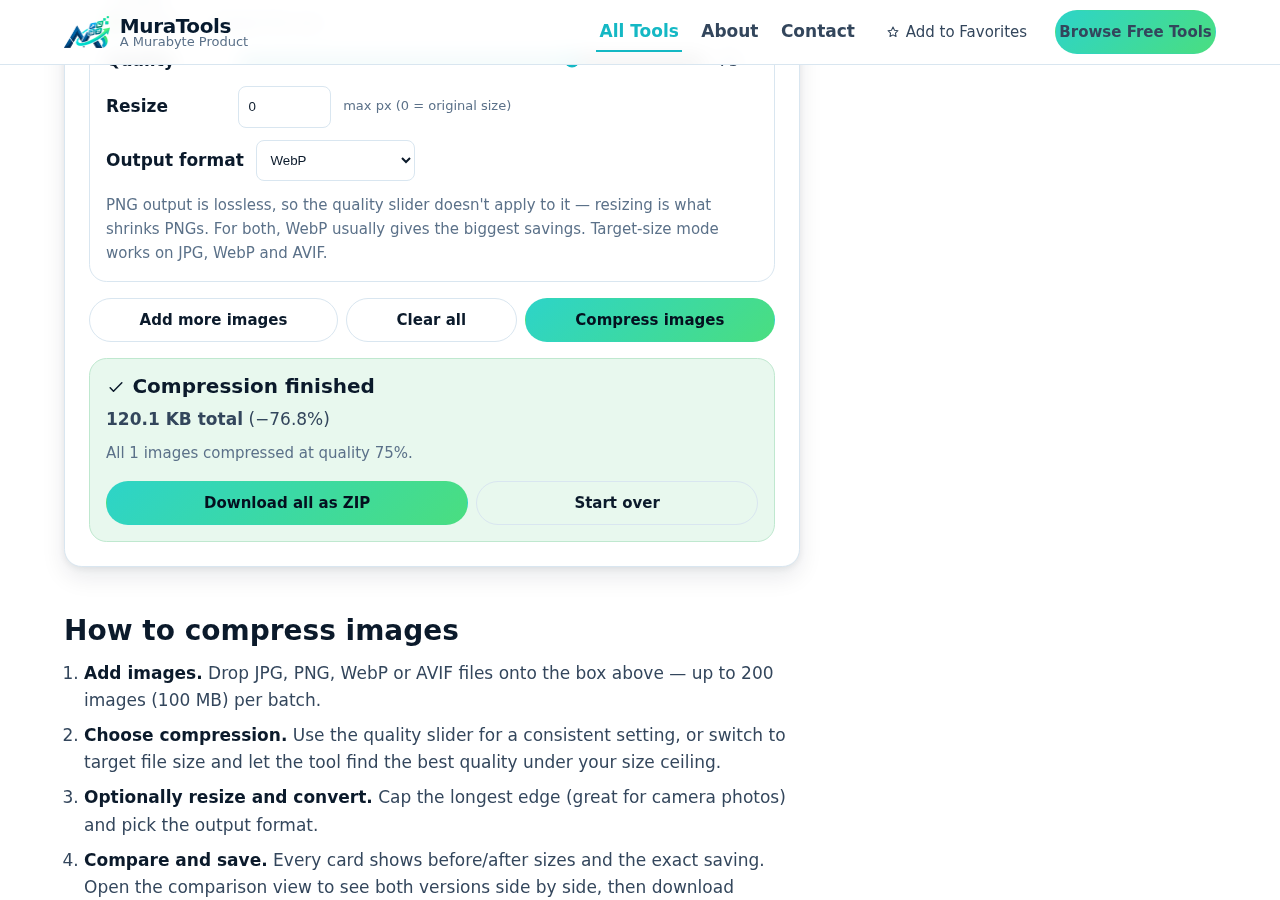
Compression finished
How to compress images
- Add images. Drop JPG, PNG, WebP or AVIF files onto the box above — up to 200 images (100 MB) per batch.
- Choose compression. Use the quality slider for a consistent setting, or switch to target file size and let the tool find the best quality under your size ceiling.
- Optionally resize and convert. Cap the longest edge (great for camera photos) and pick the output format.
- Compare and save. Every card shows before/after sizes and the exact saving. Open the comparison view to see both versions side by side, then download individually or take the whole batch as a ZIP.
Supported formats
- Inputs: JPG and JPEG (including photos with EXIF orientation), PNG (with transparency), WebP and — where your browser can decode them — AVIF.
- Outputs: same-as-input, JPG, WebP, PNG (lossless) or AVIF when the browser supports AVIF encoding.
- Transparency: PNG and WebP keep their alpha channel. Saving an alpha image as JPG flattens it — the transparent area becomes solid black.
- Batch ZIP: images are archived with a streaming, store-only ZIP library — no re-compression, so the ZIP downloads fast.
Limitations, stated plainly
- PNG is lossless in every browser. There is no PNG quality knob in the Canvas API, so the quality slider cannot shrink PNG files — resizing or switching to WebP can.
- AVIF saving depends on your browser (currently Chromium browsers). The option only appears when the browser can actually encode AVIF.
- Compression is lossy by nature. Compression artefacts are possible — the comparison view lets you judge before saving.
- Batch size is capped (200 files, 50 MB each, 100 MB total) so very large batches fail early with a clear message instead of freezing your device.
Privacy: all compression runs on your device using the browser's built-in codecs. No image, thumbnail or result is uploaded to any server — the site's security policy technically prevents it.
Related tools
Image Resizer
Resize images to exact dimensions or a percentage — 100% free, no login.
Open free toolWebP Converter
Convert between WebP, JPG, and PNG in your browser — 100% free.
Free · No loginJPG to PDF
Combine JPG images into one PDF in your browser — 100% free, no login required.
Free · No loginA real image-compression example
We tested a 1200 by 800 pixel synthetic JPG. With WebP output, quality 75 and no resizing, the file went from 530,073 bytes to 122,988 bytes, a 76.8% reduction. The pixel dimensions stayed the same, but the image encoding is lossy.
Try the same settings
- Download the original JPG and add it to the tool above.
- Choose Quality mode, set quality to 75, choose WebP and leave Resize max px at 0.
- Choose Compress images. Compare the result with the original before saving it.
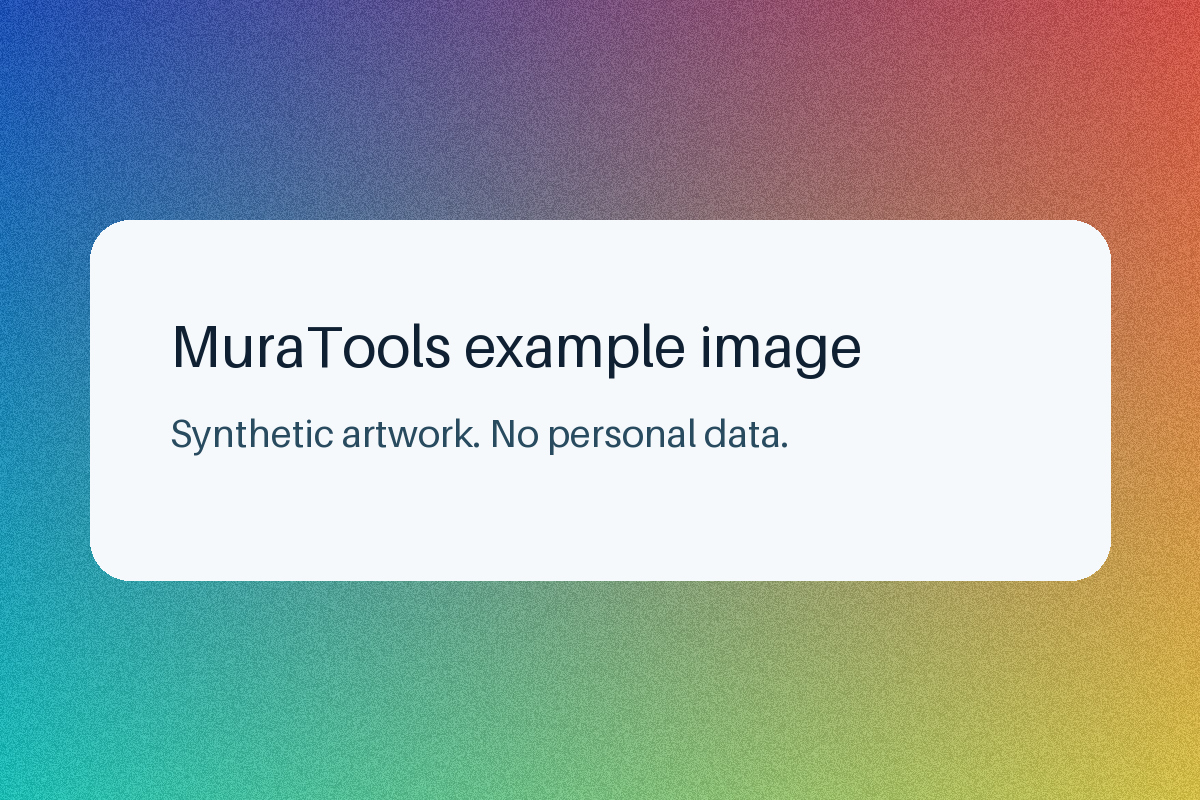
Download our WebP result to compare it with your own result.
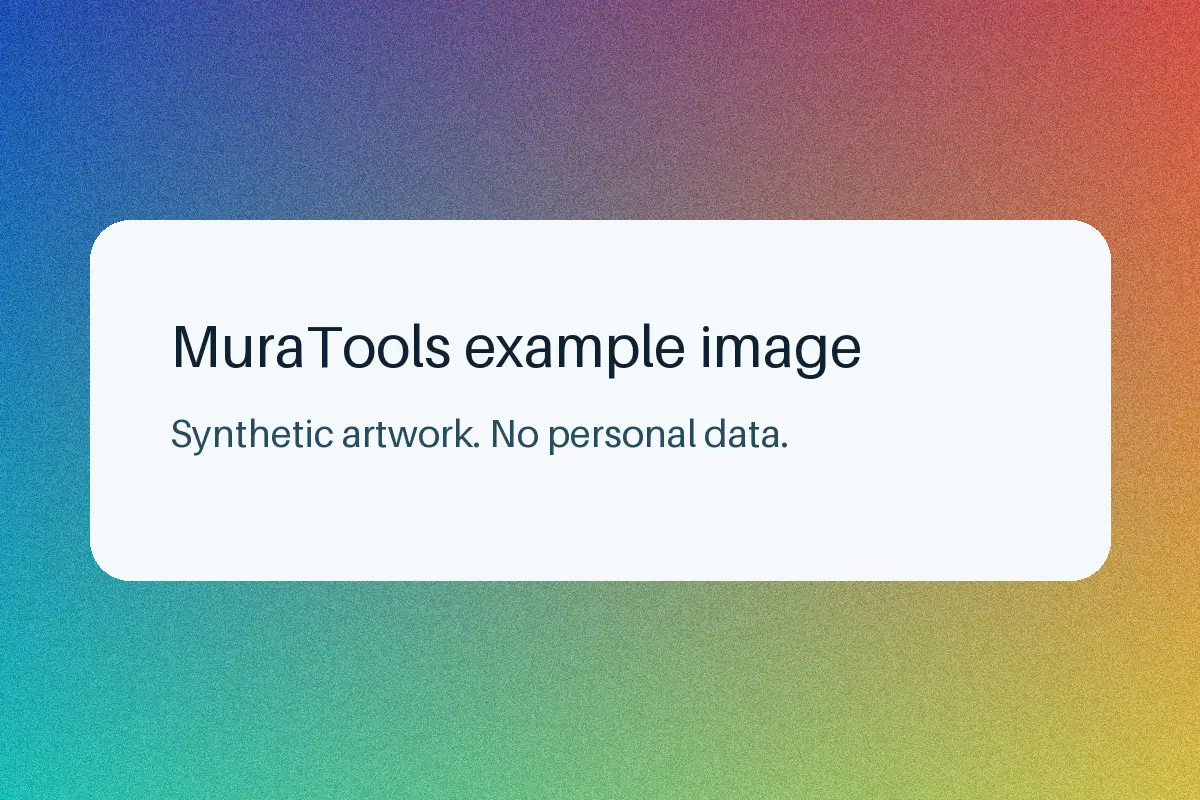
Measured in Chrome on 22 November 2026 using synthetic files made for MuraTools. These files contain no personal information. Browser codecs and your own files can produce different sizes and results. The examples are not a promise of a particular saving.
Step-by-step guide
Read the Image Compressor guide for the actual controls, supported files, limits and things to check before using the result.