
Image Compressor
Updated 22 November 2026. Instructions checked against the current MuraTools interface.
Compare the real file sizes and visual quality before choosing which version to keep.
1. Add your images
Choose JPG, PNG or WebP images. AVIF input depends on browser decoding support. A batch can contain up to 200 files, 50 MB per file and 100 MB total.
2. Choose quality or a target size
In Quality mode, adjust the quality slider. In Target file size mode, enter a ceiling in KB per image. Target-size mode applies to JPG, WebP and supported AVIF output, not lossless PNG.
3. Resize or change format if needed
Resize max px caps the longest edge; 0 keeps the original dimensions. Choose Same as each input, JPG, WebP or PNG. AVIF output is offered only when the browser can encode it.
4. Compare and download
Choose Compress images. Each result shows before and after sizes. Open the comparison view to inspect detail, then download individual results or Download all as ZIP.
Limits and things to check
- PNG output is lossless. The quality slider does not reduce PNG quality; resizing or changing format is needed to reduce its size.
- JPG does not support transparency. This tool flattens transparent areas to black when saving JPG. Use PNG or WebP if transparency matters.
- Compression can introduce visible artifacts, and a converted file is not always smaller.
Processing and privacy
The tool processes supported inputs in your browser. Loading the website can still make analytics or advertising requests. See the privacy page for the distinction between local tool processing and website services.
A real image-compression example
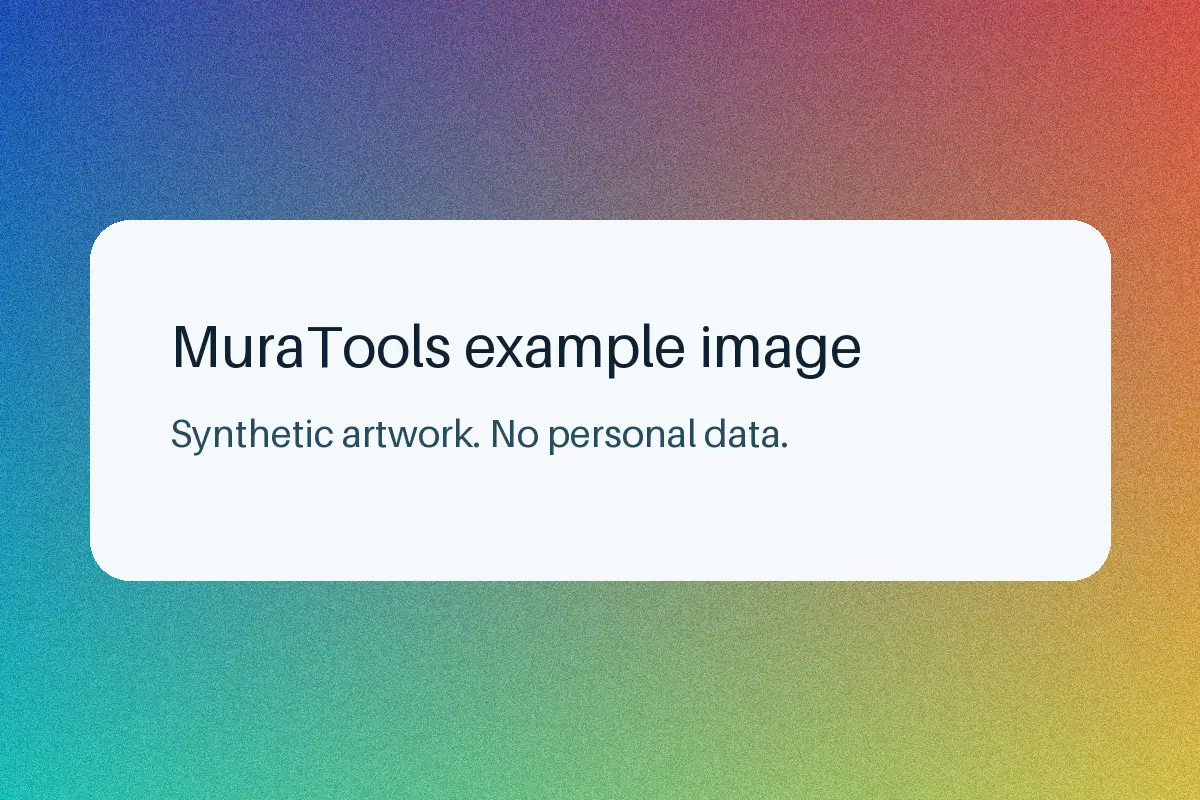
We tested a 1200 by 800 pixel synthetic JPG. With WebP output, quality 75 and no resizing, the file went from 530,073 bytes to 122,988 bytes, a 76.8% reduction. The pixel dimensions stayed the same, but the image encoding is lossy.
Try the same settings
- Download the original JPG and add it to Image Compressor.
- Choose Quality mode, set quality to 75, choose WebP and leave Resize max px at 0.
- Choose Compress images. Compare the result with the original before saving it.
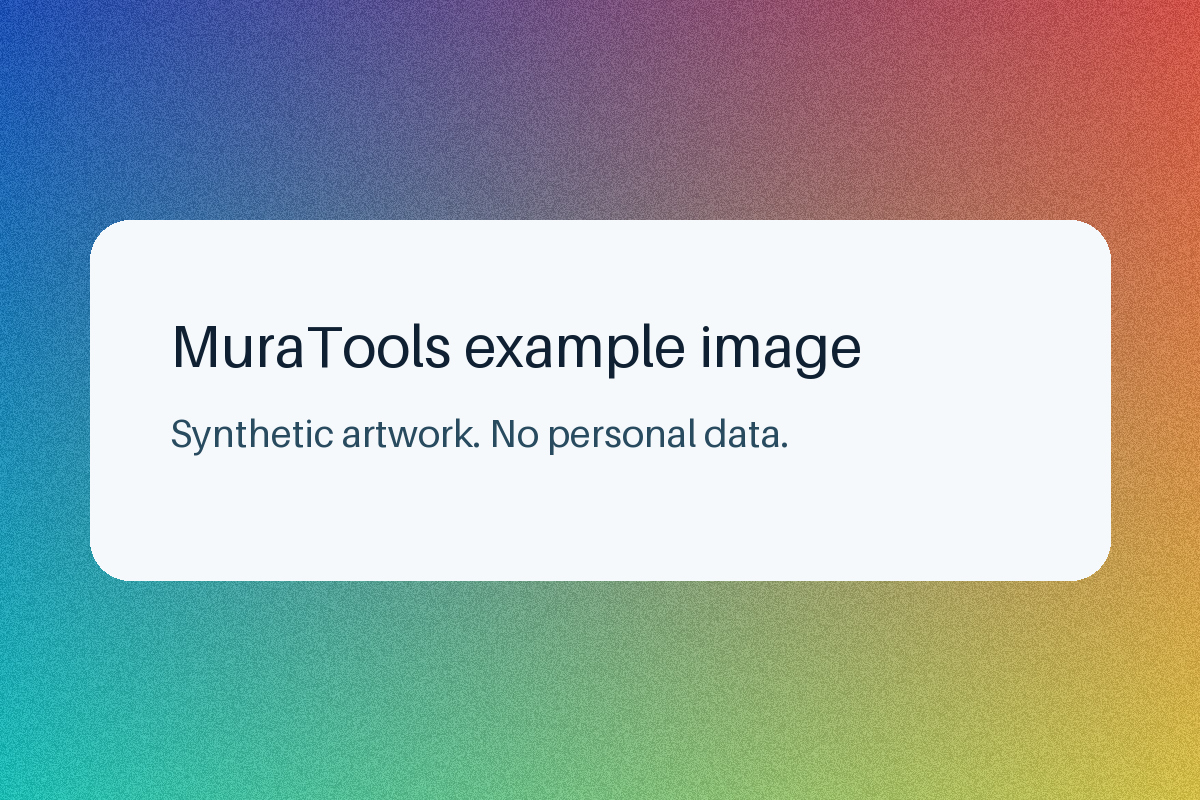
Download our WebP result to compare it with your own result.
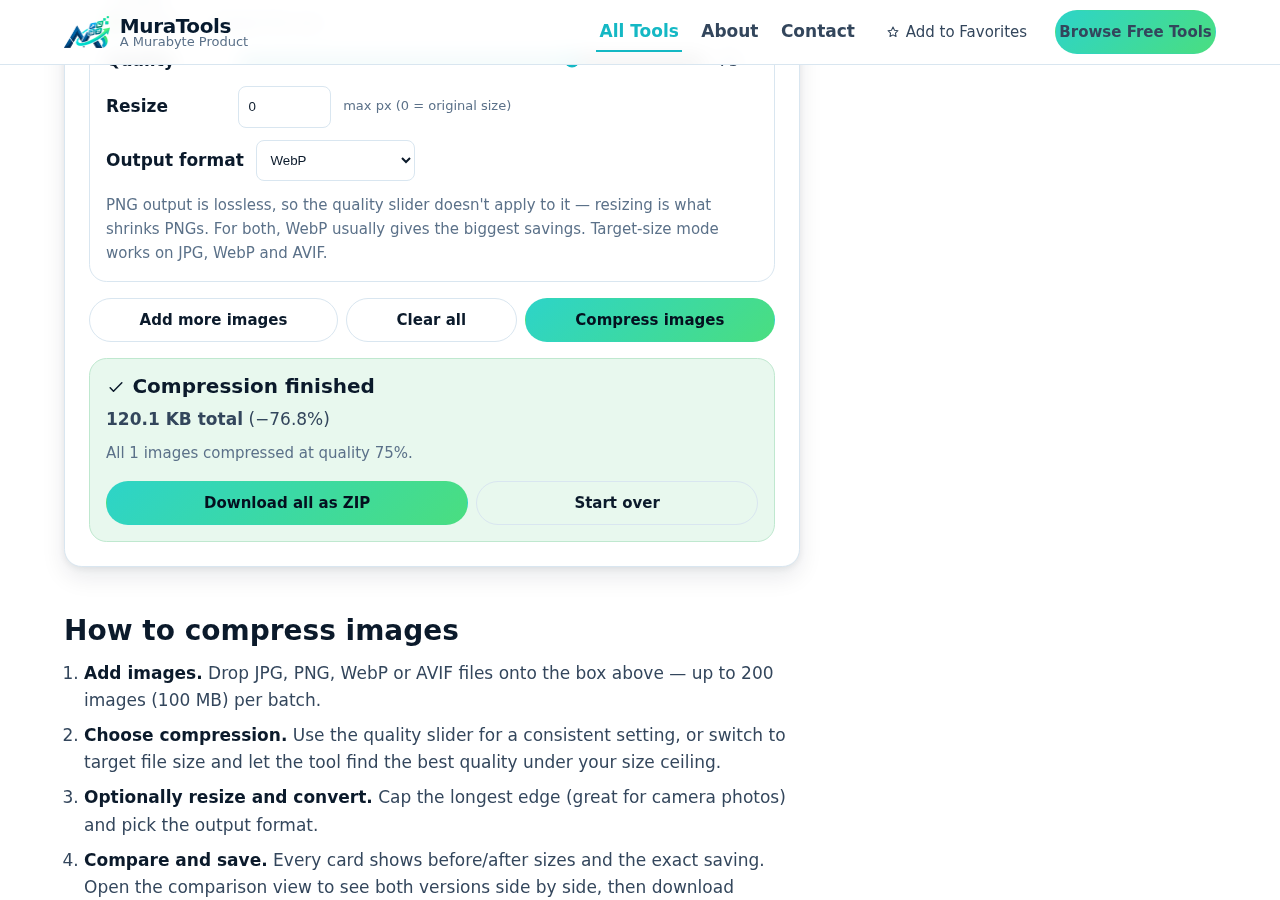
Measured in Chrome on 22 November 2026 using synthetic files made for MuraTools. These files contain no personal information. Browser codecs and your own files can produce different sizes and results. The examples are not a promise of a particular saving.