PDF Compressor
Updated 22 November 2026. Instructions checked against the current MuraTools interface.
Choose between preserving PDF objects and flattening pages into images. A smaller file is not guaranteed.
1. Add your PDFs
Open PDF Compressor and choose or drop your files. The batch limit is 20 PDFs and 100 MB total. Password-protected and damaged or unsupported PDFs are rejected.
2. Choose the right mode
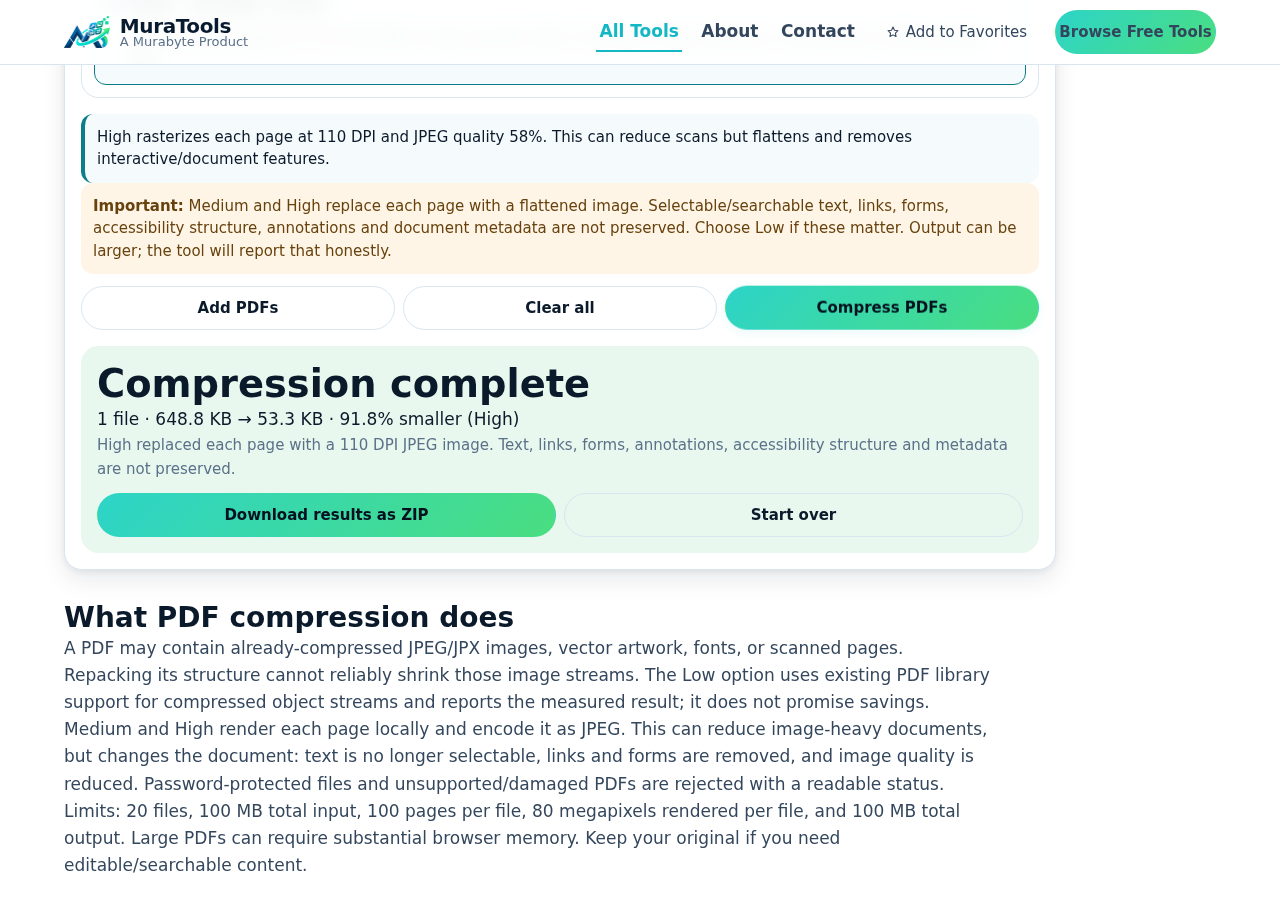
Low rewrites the PDF structure without recompressing existing images. It may save little or nothing. Medium renders each page as a 144 DPI JPEG at 78% quality. High uses 110 DPI and 58% quality, with greater image loss.
3. Keep searchable text when it matters
Medium and High flatten every page. Selectable text, links, forms, annotations, accessibility structure and document metadata are not preserved. Use Low when those features matter, and keep the original.
4. Compress, compare and save
Choose Compress PDFs. Check the measured input and output sizes before downloading. Save the processed PDFs or use Download results as ZIP for the results together. This ZIP contains PDFs, not separate page images.
Limits and things to check
- A file can become larger, especially when its images are already compressed. Do not replace your original without checking.
- Each PDF is limited to 100 pages and 80 megapixels of rendered pages. Total output is limited to 100 MB. Large documents can still strain a phone's memory.
Processing and privacy
The tool processes supported inputs in your browser. Loading the website can still make analytics or advertising requests. See the privacy page for the distinction between local tool processing and website services.
One PDF, two very different compression results
Our synthetic, image-heavy, one-page PDF was 664,403 bytes. We tested Low and High separately to show why the tradeoff matters.
| Mode | Measured output | What changes |
|---|---|---|
| Low | 664,157 bytes, less than 0.1% smaller | Structural rewrite. Existing image data is not recompressed. |
| High | 54,602 bytes, 91.8% smaller | Each page becomes a 110 DPI JPEG at quality 58%. Selectable text and interactive features are lost. |
Download the original example PDF, then test each mode in a separate run. Keep Low if preserving supported PDF objects matters more than file size. High may help an image-heavy scan, but it is not the right choice when searchable text, links, forms or accessibility structure must remain.
Compare our saved outputs: Low PDF and High PDF. Keep your original document in every case.
Measured in Chrome on 22 November 2026 using synthetic files made for MuraTools. These files contain no personal information. Browser codecs and your own files can produce different sizes and results. The examples are not a promise of a particular saving.